There are two routes and they do not produce the same file. Inside Word: File → Save As, then choose PDF from the file type list. Outside Word: hand the .docx to a converter and take back what it gives you. Either way it takes seconds. Every Word-to-PDF conversion is a trade, though, and what you trade depends on one question — does the converter have your fonts? If it does, you get a copy. If it does not, you get the same words re-typeset in different letterforms, with the line breaks and the page count in new places.
What a .docx actually is
A Word file is a zip archive wearing a different extension. Rename one to .zip, open it, and inside is a folder of XML: word/document.xml holds the text and its structure, word/styles.xml the named styles, word/media/ the pictures. The format is published, and a plain text editor can read it. None of it is secret.
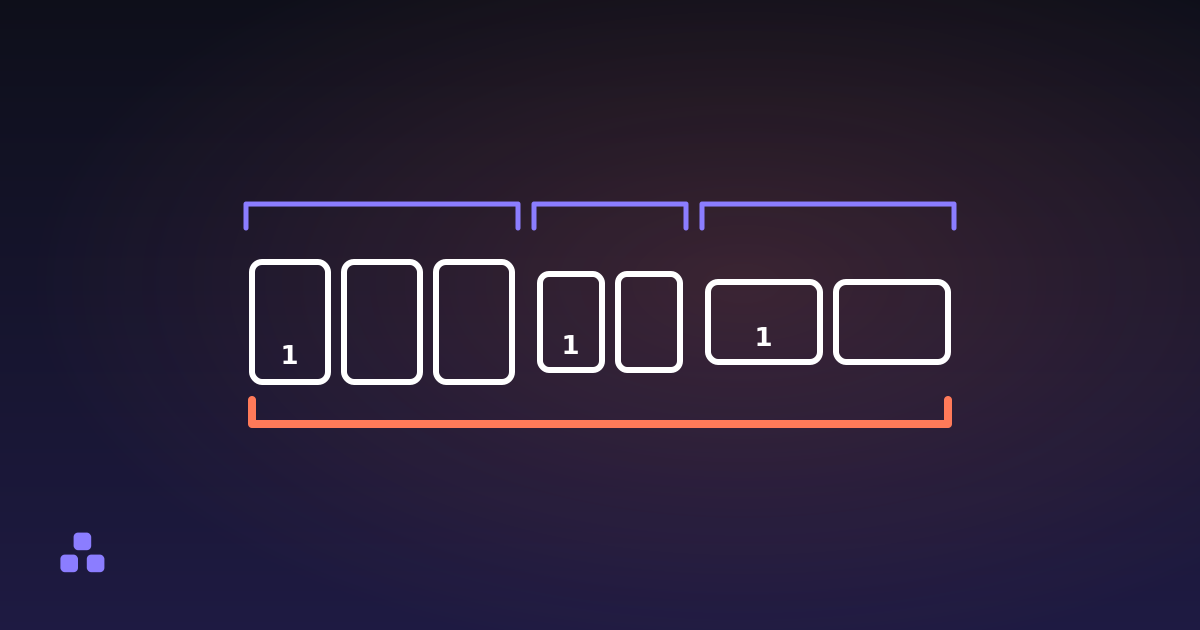
The important part is what is not in there: pages. A .docx has no page 1 and no page 7. It stores paragraphs, styles and a page size, and the pagination is worked out again every time something opens the file. That is why the same document repaginates when you open it on another computer or switch printer drivers, and why the conversion is the moment pages get decided at all. A PDF is nothing but pages.
Why the conversion can happen on your own machine
Because a browser already does both halves of the job: it unzips archives and parses XML, and a PDF is a text-based format you can write with string operations. None of that needs a server, which matters more here than in most places: a Word document is usually a contract, a CV or a medical letter, and the ordinary free converter asks you to hand exactly that to a machine you know nothing about. The Word to PDF converter here unzips and reads the file inside the tab and writes the PDF there too, so you can disconnect from the internet after the page loads and it still works.
Why does the PDF not look like my Word document?
Fonts. Almost always, only fonts.
A PDF can name a font in two ways. It can embed it — copying the font program itself, usually only the glyphs the document uses, so the text draws identically on a machine that has never heard of that typeface. Or it can point at one of the fourteen standard fonts every PDF reader has shipped with since 1993: Helvetica, Times and Courier in four styles each, plus Symbol and ZapfDingbats. Naming one of those costs nothing.
Word's default font is not one of them. Calibri was the default for years and Aptos is the default now, and neither is a standard PDF font — so a PDF that wants to look like your document has to carry the typeface with it. Word's own export does that, because the font is installed on the machine doing the exporting. A converter that does not have your font cannot invent it.
The worst outcome is a PDF that names a font it never embedded: the reader substitutes something with roughly the right proportions, so the file looks different on every machine that opens it, which is the one thing the format exists to prevent. Better to say it plainly: the converter on this site sets your text in Helvetica, Courier where the document was monospaced, and says so instead of naming a font it does not have. Your words come out exactly as your words; the shapes are not yours.
What actually moves when the fonts are swapped
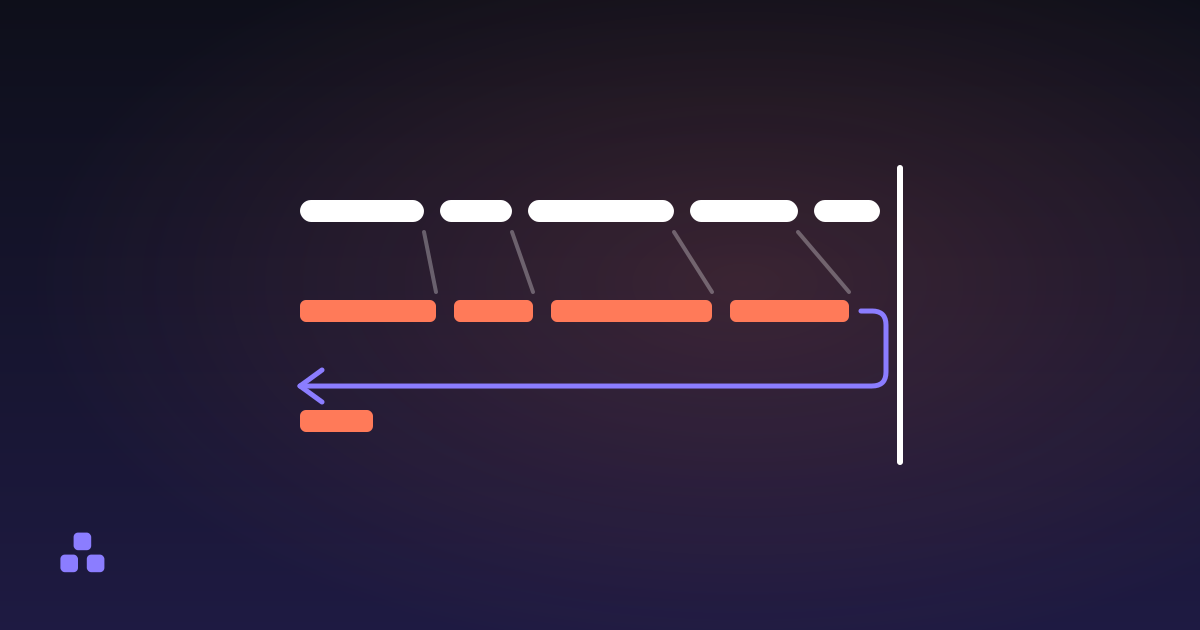
Every character has a width, and changing the typeface changes all of them at once. The text reflows, and the damage lands in predictable places:
- Line breaks. A line that ended on "however" in Word now ends a word or two earlier, or later.
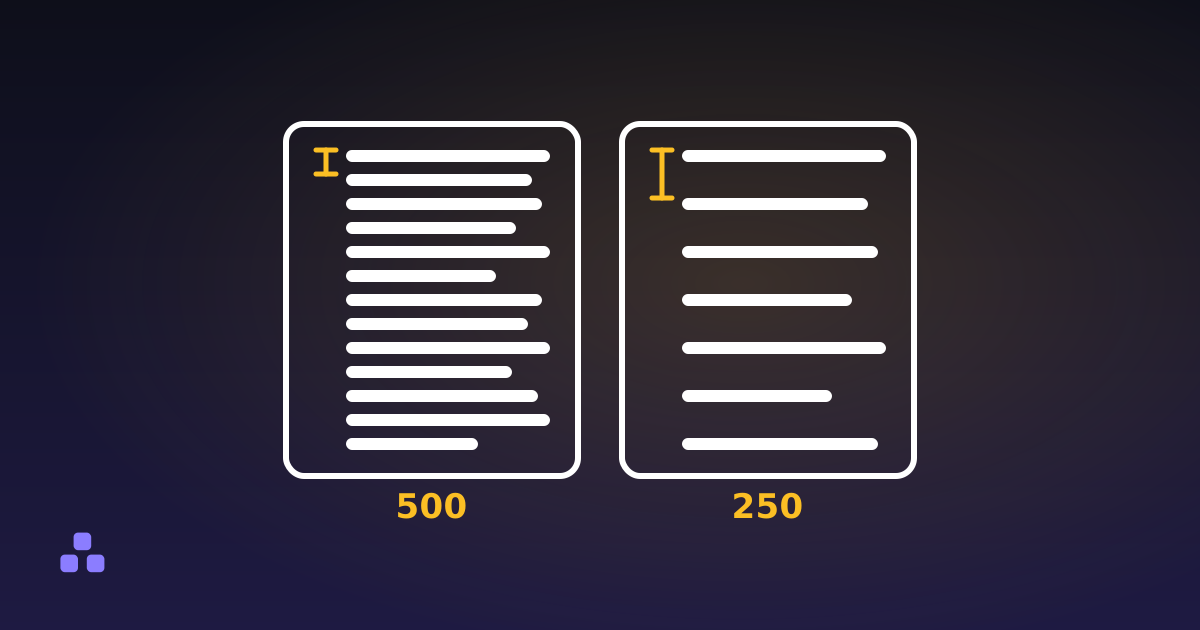
- The page count. Four tidy pages become four pages and three lines. Headings drift to the bottom of a page and paragraphs split across the fold. How many words fit on a page is the arithmetic underneath that, and it explains why a narrower typeface buys back a page.
- Tables. The text inside the cells rewraps like any other text, so a row that was one line tall becomes two and the table grows downwards.
- Anything aligned with spaces or tabs. Signature lines, improvised columns, hand-spaced headers: always fragile, and a font change is what finally breaks them.
There is one narrow escape hatch. Some fonts are metric-compatible with others: identical widths per character, different drawings. Arial was built to Helvetica's widths, and Carlito and Caladea, which LibreOffice ships, match Calibri and Cambria. A substitution inside one of those pairs leaves the line breaks where they were. Calibri to Helvetica is not one of those pairs, so here the reflow is unavoidable.
When is Word's own export the right answer?
Whenever the layout is the content. A CV where the spacing is the design, a brochure, a form somebody fills in by hand, a report with an index that cites page numbers — there a page break in the wrong place is a defect, not a cosmetic difference. Word, LibreOffice and Google Docs have your fonts and their own layout rules, so exporting from the program that made the file gives you a photograph of what you were looking at.
It is also the answer whenever the document has images: placing a picture the way Word placed it means reproducing Word's anchoring and text-wrapping rules, and roughly right is worse than honestly absent. And if the file has to meet an archive standard such as PDF/A, embedded fonts are a requirement of the format, not a preference.
When is a browser converter the better trade?
When you want the content fixed and readable rather than pixel-identical, and you would rather not upload it at all. A reading copy, a draft for comments, an attachment for somebody without Word. You give up the exact typeface and the exact pagination. You get privacy, speed, and a much smaller file — a PDF with no embedded fonts and no revision history is often a fraction of the size of the .docx it came from.
Be clear-eyed about what else stays behind, because this is where converters go quiet. Pictures are dropped. Headers, footers and footnotes are dropped. A multi-column layout is flattened rather than dropped: the text survives, in one column. Tracked changes resolve to the inserted text and the deletions are left out. The original page size is not read from the document, so you pick A4 or Letter yourself. Your table column widths are not read either: every column comes out the same width, and a borderless table arrives with visible rules. The tool warns you about the pictures, the columns, the headers and footers, the footnotes and the tracked changes before you convert, which is the only useful moment to be told. It says nothing about the table columns, or about hyperlinks, which keep their text and lose their address. And when the result has to travel with other documents, combining them into one PDF is a separate job that also needs no upload.
Why is PDF back to Word the hard direction?
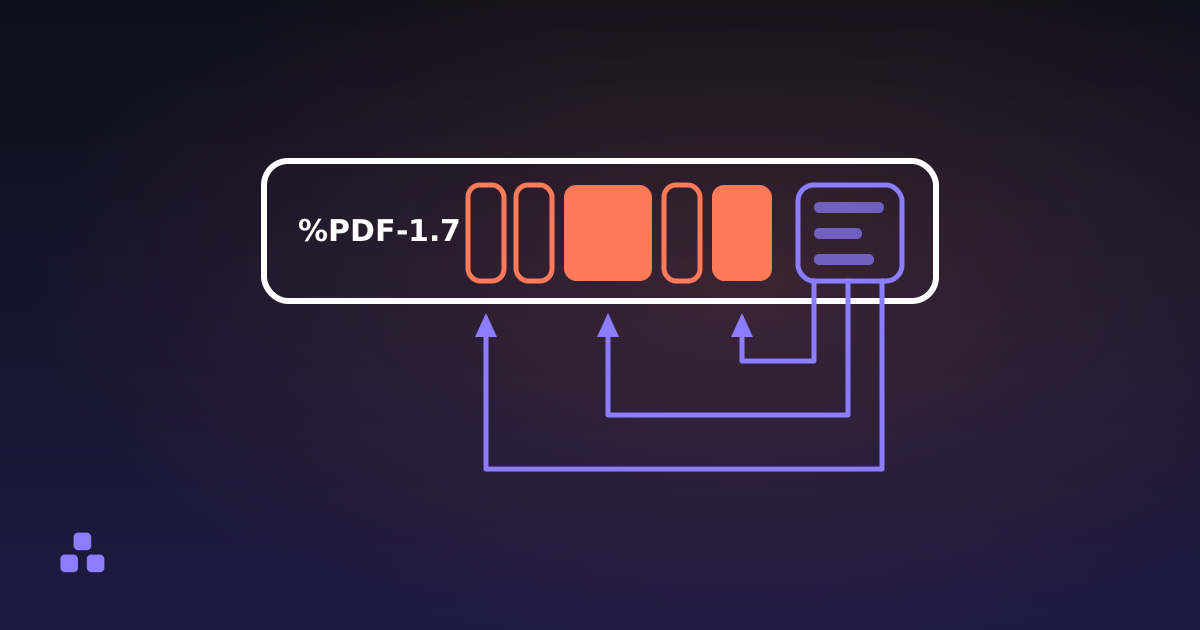
Because a PDF does not contain paragraphs. It contains instructions to draw glyph number 47 at a pair of coordinates, in a font, at a size. What you read is a picture that happens to be made of letters.
Recovering "this is a heading, this word is bold, these lines are one paragraph" means reading the embedded fonts, mapping their internal glyph numbers back to characters through a table the format does not require a file to include, then inferring structure from positions. When that table is missing, the text cannot be recovered without guessing — and a converter that guesses wrong some of the time is worse than none, because you find out which time after you sent the file. What is actually inside a PDF file takes the format apart properly, and shows why the forward direction is so much easier.
What to check before you send it
- The page count, against the original. If it changed, everything below the change moved too.
- The first and last page, for a heading stranded at the bottom or one leftover line of a paragraph at the top.
- Tables, for rows that grew and cells that now wrap onto a second line.
- Characters from outside Western Europe. The standard fonts carry Latin-1 plus the usual typographic punctuation, so accents, curly quotes, em dashes and the euro sign all survive. Greek, Cyrillic and Chinese do not, and neither does a Polish ł, a Turkish ğ or an arrow. Each one comes out as a question mark, and the converter counts them for you.
None of that takes longer than opening the file and scrolling through it. Doing it once is cheaper than hearing from the recipient that page six is blank.
If your document is text — a report, a letter, a draft, a reading copy of a CV — the Word to PDF converter does the whole thing in the tab and tells you up front what your file contains that will not survive the trip. If the layout is the point, export from Word instead, which is the entire trade in one sentence.
Once the PDF exists it usually has somewhere to be. How to merge PDFs without uploading them covers the step most people need next: stitching the converted file together with the scans and attachments it has to travel with, in the right order, without handing the lot to a server.
Frequently asked questions
How do I convert a Word document to PDF for free?
Word itself does it with File → Save As and PDF as the file type, and so do LibreOffice and Google Docs, all without paying anything. A browser-based converter does it without opening Word at all, which is useful on a machine that does not have it installed. The difference is not price but fidelity: the programs that own your fonts can embed them, and a converter that does not have them has to substitute.
Why does my PDF look different from my Word document?
Because the fonts changed. A PDF either embeds the typefaces it uses or falls back on the fourteen standard fonts every reader provides, and Calibri and Aptos are not among those fourteen. When the converter has no copy of your font, the text is set in something else, and since the letter widths differ the lines and pages break in new places.
Will the page numbers stay the same after converting to PDF?
Only if the fonts stay the same. A .docx does not store pages at all — pagination is recalculated whenever the document is laid out — so a font substitution can add or remove a page. If a page-number index or a citation depends on it, export from Word, which has the fonts and its own layout engine.
Is it safe to convert Word to PDF online?
It depends entirely on whether the site uploads your file. Most do, which means your contract or CV sits on a server under a retention policy you never read. A converter that runs in the browser never transmits the document, so nothing leaves your computer and there is no account to create.
Can I convert a PDF back into a Word document?
Not reliably, and that is a property of the format rather than a missing feature. A PDF stores glyph positions instead of paragraphs, and turning those back into text depends on a mapping table the file is not required to include. When the table is absent the original characters cannot be recovered without guesswork, which is why that direction is not offered on this site.
Can I convert an old .doc file to PDF?
Not directly. The binary .doc format from Word 2003 and earlier is a completely different thing from .docx, which is a zip of XML. Open it in Word or LibreOffice, save it as .docx first, and then convert that.
Last updated September 21, 2026