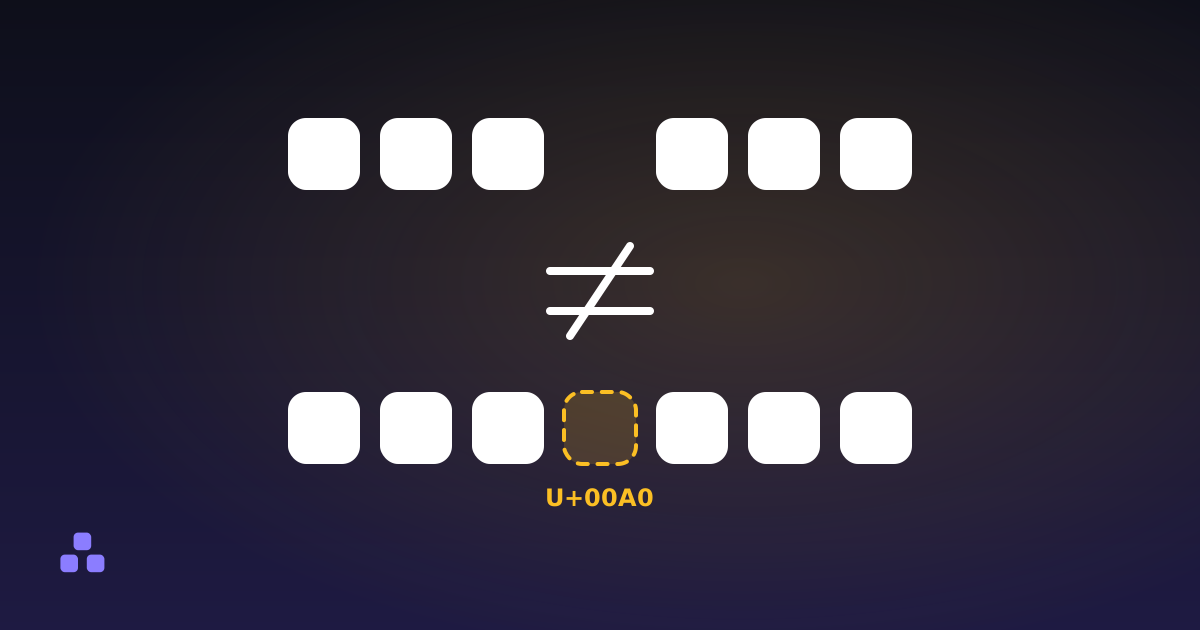
A word processor replaces some of the characters you type with look-alikes: straight quotes become curly ones, a spaced hyphen becomes an en dash, three dots become a single ellipsis character. The text looks better and is made of different characters. Anything that compares text exactly (a search box, a line of code, a URL, a spreadsheet lookup) treats the look-alike as a stranger, which is why the damage only shows up after you paste.
Which characters does Word swap without asking?
With its default AutoCorrect settings, Word makes these substitutions as you type. The exact set depends on the version and on what you have switched off, so treat the table as the usual case:
| You typed | You get | Code point |
|---|---|---|
| Straight apostrophe or single quote | ‘ and ’ | U+2018, U+2019 |
| Straight double quote | “ and ” | U+201C, U+201D |
| A hyphen with a space on each side | – | U+2013 (en dash) |
| Two hyphens between words | — | U+2014 (em dash) |
| Three dots | … | U+2026 |
Two more arrive by other routes. A non-breaking space (U+00A0) is what Word inserts when you press Ctrl+Shift+Space, and what web pages and CMS editors use all the time. A soft hyphen (U+00AD) is a hyphen that only shows when a line breaks at that spot; it comes from Word's optional hyphen and from automatic hyphenation, and it turns up in text copied from PDFs. Both are invisible or nearly so, which is the subject of invisible characters in text.
Why do the problems only appear after pasting?
In a proportional font the eye cannot tell ’ from ', and in a document nothing compares them. The failures start the moment the text lands somewhere that does:
- In a search box or a find command. Searching for
don'tdoes not finddon’t, and the reverse is just as true. - In code. A curly quote is not a string delimiter in most languages, so a snippet copied out of a document stops at the first one with a syntax error that points at a character you can barely see.
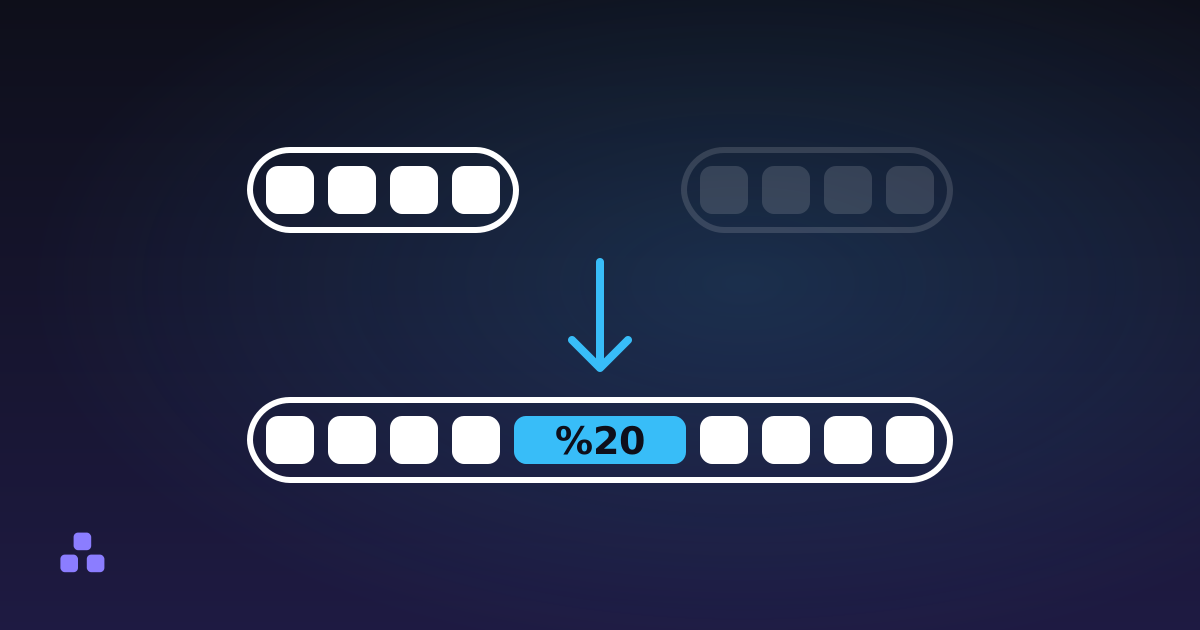
- In a URL or a filename. The character gets percent-encoded into its UTF-8 bytes, so ’ becomes
%E2%80%99and an en dash becomes%E2%80%93. URL encoding is doing its job, and the link now looks like noise. - In a spreadsheet or a CSV. A lookup for
O'BrienmissesO’Brien, and two rows that read the same stay separate.
There is also the reverse failure. If the receiving program reads the bytes with the wrong encoding, ’ arrives as ’: the three UTF-8 bytes shown as three Windows-1252 characters.
How do you find what Word changed?
Paste the text into the find and replace tool, tick Regular expression and search for [\u2018\u2019\u201C\u201D\u2013\u2014\u2026\u00AD\u00A0]. Every match is listed with its line, its column and the text around it, and the count tells you how much is in there before you change anything.
The whitespace cleaner does not cover this. By the code it replaces non-breaking and other Unicode spaces and strips zero-width characters and the byte order mark, but it leaves quotes, dashes, the ellipsis and the soft hyphen alone, because none of them are spaces. Use it for the spacing and the find tool for the rest.
How do you turn them back, and when should you not?
In the find and replace tool, with the regular expression box ticked, three replacements cover most of it: [\u2018\u2019] with ', [\u201C\u201D] with ", and \u00AD with nothing. The ellipsis becomes three full stops, and a non-breaking space becomes an ordinary one.
The en and em dashes need a decision. In a range such as 10–20 the en dash is correct typography, and in a hyphenated data field it is a bug. Flattening dashes across a whole document trades one error for another, so replace them only in text a machine will read. The same goes for quotes: curly quotes are right in prose, and once you have flattened both kinds into one straight character you cannot tell which were opening and which were closing.
Pasting as plain text, which most editors offer as Ctrl+Shift+V, removes fonts and styling but keeps these characters, because they are text. The lasting fix is upstream. In Word the setting is in the AutoCorrect options, on the AutoFormat As You Type tab, under replacing straight quotes with smart quotes; menu names vary by version. Switching it off helps only for text you write from then on.
If you have a block of pasted text and want to know what is in it before you touch it, search it with the regex above and read the match list. It runs in the page, so the text stays on your machine.
The same habit of reading the matches first is what keeps a bulk change from damaging the words around it, and the mistakes a replace-all makes are worth knowing before you flatten a whole document.
Frequently asked questions
Why does text pasted from Word have weird quotes and dashes?
Word replaces straight quotes with curly ones, a spaced hyphen with an en dash and three dots with an ellipsis character as you type. They are real, different characters (U+2018, U+2019, U+201C, U+201D, U+2013, U+2026), so they come along when you copy the text. Where the text lands decides whether that matters.
How do I replace smart quotes with straight quotes?
Use a find and replace tool with regular expressions switched on. Replace [\u2018\u2019] with a straight apostrophe and [\u201C\u201D] with a straight double quote. Read the match count first, and do not do this to prose you are publishing, where curly quotes are the correct typography.
Why does my code fail with a syntax error after copying it from a document?
Most likely a straight quote was turned into a curly one. Curly quotes are not string delimiters in most programming languages, so the parser stops at the first one. Replace curly quotes with straight ones, and check for en dashes where you meant a minus or a hyphen.
Does pasting as plain text remove smart quotes?
No. Pasting as plain text removes fonts, colours and other styling, but smart quotes, dashes and the ellipsis are characters in the text itself and stay. To get rid of them you have to replace them, or turn off the AutoCorrect option before you type.
Last updated October 8, 2026